Download Transparent Clock Software
You can download and try out this Transparent Clock Software on your Windows 11 or Windows 10 computer for free. After following the standard software installation procedure, you will be able to launch the Transparent Clock Software using a desktop shortcut.
Features of Transparent Clock Software
This Transparent Clock Software utility for Windows offers you a configurable and transparent digital clock on your computer monitor or display device. It works on Windows 10, Windows 11, and other recent Windows operating systems, supporting both 32-bit and 64-bit architectures. Once the free trial expires, you can pay USD 7.89 and use it on 1 computer for up to 6 months from the date of payment. Please take a look at the screenshots provided below or read about the various features offered by this Transparent Clock Software for Windows.
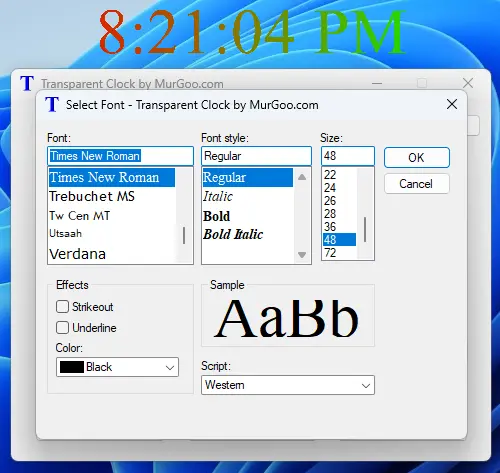
- Configurable font for the display of the digital clock text with the help of a standard font selection screen.
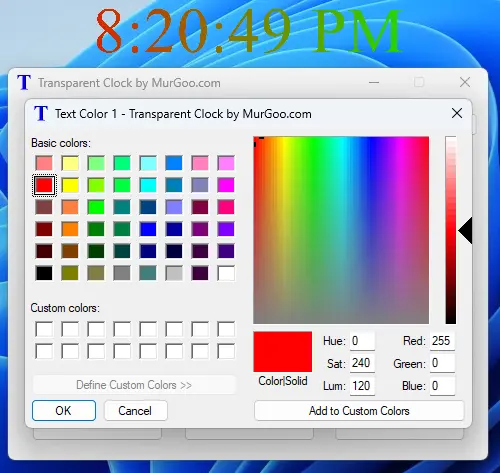
- 2 configurable gradient colors are available for selection through a standard color selection screen.
- The gradient for the text of the transparent clock can be configured in horizontal, vertical, forward diagonal, and backward diagonal patterns.
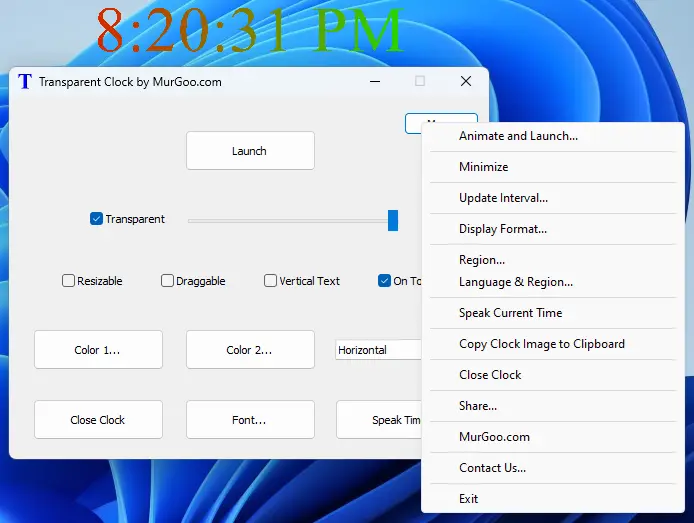
- The clock text format can be changed using the custom time format selection.
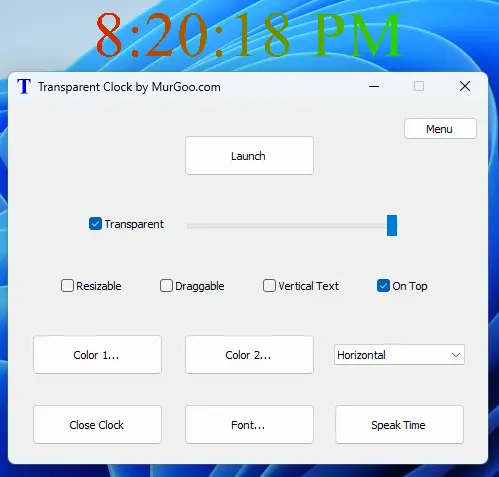
- The transparent clock can be resized and relocated easily, and once the dimensions and location of the clock are configured as required, you can easily make it transparent.
- The transparency of the transparent clock is also configurable using a slider on the main screen of the software. Transparency can be adjusted to display semitransparent clock text or translucent clock text. When the clock text is made transparent, mouse clicks and other Windows actions are propagated to the underlying window or control.
- You can also set the transparent clock to stay on top of other applications easily from the main screen of the software.
- The text of the transparent clock can be displayed in a horizontal or vertical direction.
- To speak the text displayed by the Transparent Clock Software, you can click on the Speak Time button on the main screen of the software.
- You can also change the time update interval from the right-click menu of the software. The default time update interval is 1000 milliseconds or 1 second.
- Save and load Transparent Clock Software parameters and launch the digital clock with saved parameters.
Screenshots of Transparent Clock Software
See the screenshots below of this Transparent Clock Software running on Windows 11. A short description is provided with each screenshot explaining the purpose and usage of the feature displayed.